
Daily Planning Board Guide
The Daily Planning Board is where you execute on your tasks. It enforces the 1-3-5 method by limiting what you can commit to each day, helping you focus on what matters most.
Understanding the Board Structure
The Daily Board has three sections, each with a specific capacity:
Your most important task. The ONE thing that would make today feel successful.
Important supporting work. Tasks that keep projects moving forward.
Quick wins. Emails, calls, small fixes you can knock out in 15 minutes or less.
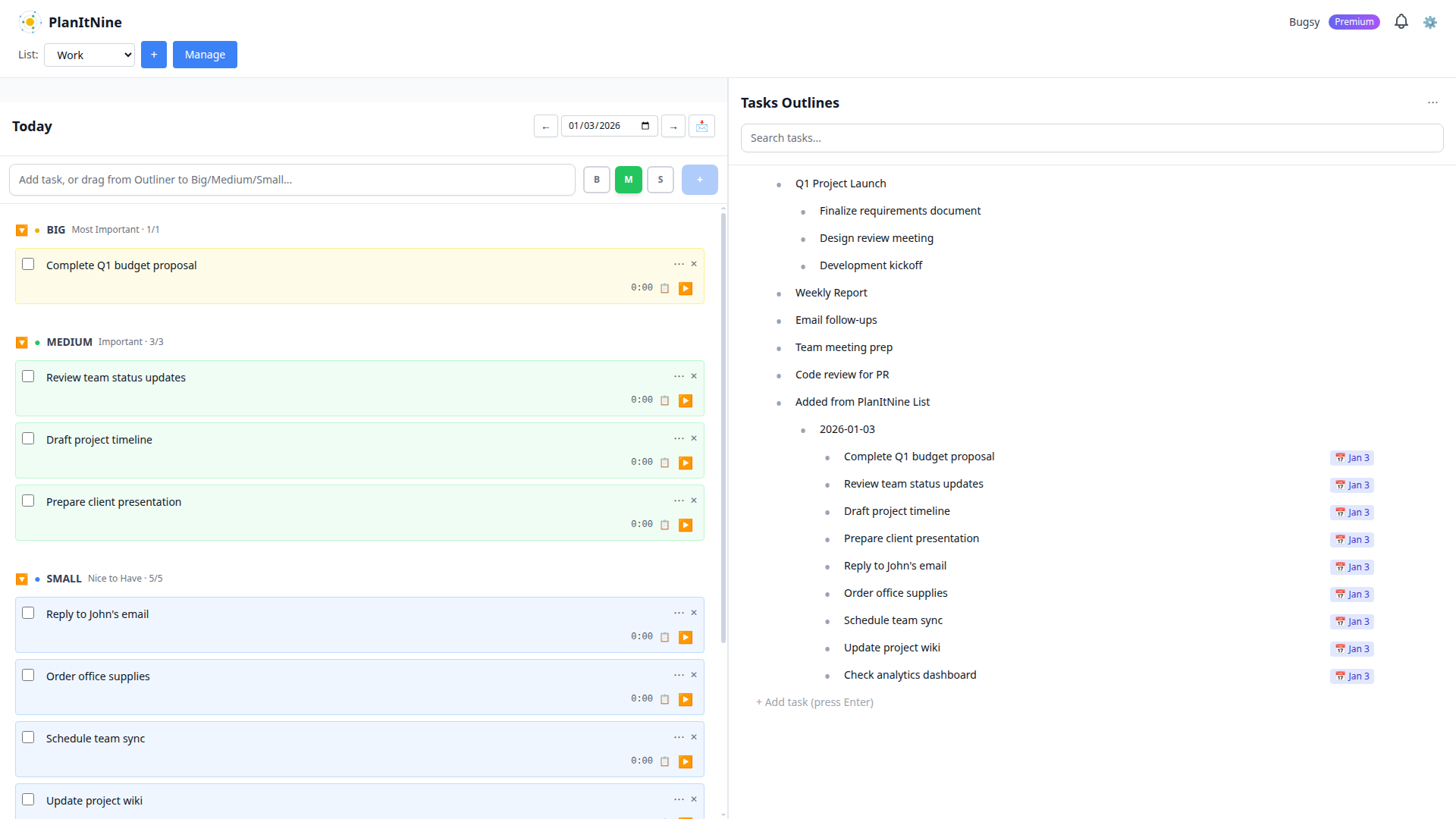
A complete daily plan with all 9 slots filled.
Adding Tasks to Your Day
Method 1: Quick Add
- Type in the "Add task" field at the top of the board
- Click the B, M, or S button to set the size
- Press Enter or click the + button
New tasks appear at the top of their section (above existing tasks).
Method 2: Drag from Outliner
Drag any task from the Outliner and drop it on the Big, Medium, or Small section. Tasks are added to the top of the section. This is the recommended workflow - plan in the Outliner, then drag to today when ready.
Method 3: Schedule from Outliner
Click the menu on any Outliner task, select "Schedule Work...", and choose Today with your desired size.
Task Controls
Each task on the Daily Board has several controls:
Mark task complete
Add task notes
Set a deadline
More options
Remove from today
Track time spent
The Task Actions Menu
Click the three-dot menu (⋯) on any task for additional options:

The task menu provides quick access to common actions.
- View History: See all time entries for this task
- Properties: Edit title, description, and details
- Go to Task Outline: Jump to this task in the Outliner
- Continue Later: Remove from today without deleting
- Move to Tomorrow: Reschedule for the next day
- Move to Next Week: Reschedule for next week
- Change Size: Move between Big, Medium, Small
- Delete: Permanently remove the task
Navigating Between Days
Use the arrow buttons or date picker in the header to navigate between days:
- ← / → buttons move one day at a time
- Click the date to open a calendar picker
- View any past or future date to plan ahead or review
Time Tracking
Each task shows its tracked time. Click the play button (▶) to start timing. See the Time Tracking guide for more details.
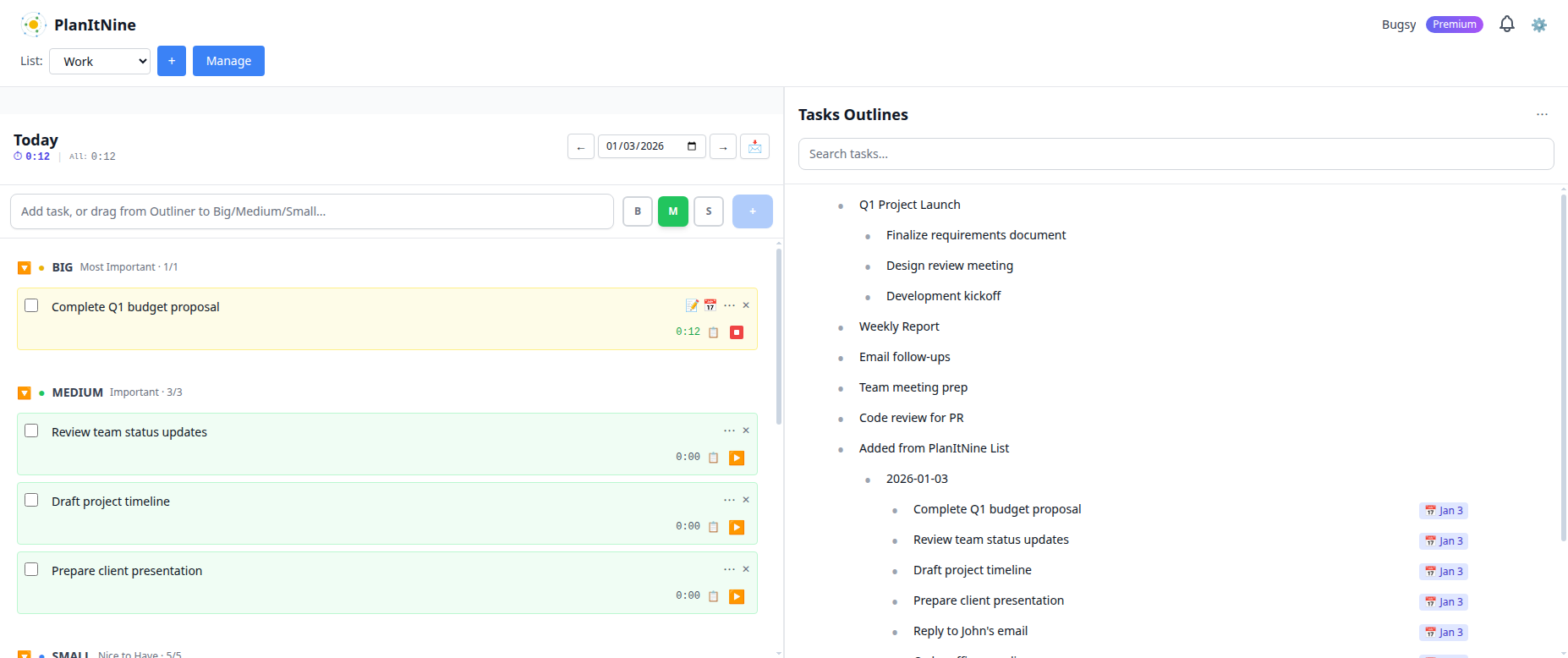
The timer shows elapsed time on the task and in the header.
Daily Notes
Below the task sections is a Daily Notes area. Use it for:
- General notes about the day
- Meeting notes
- Reflections on what went well or didn't
- Ideas that come up during the day
Notes auto-save as you type.
Sharing Your Plan
Click the email icon (📩) in the header to share today's tasks. You can:
- Email to yourself as a reminder
- Send to your manager or team
- Set up auto-send to share your plan each morning
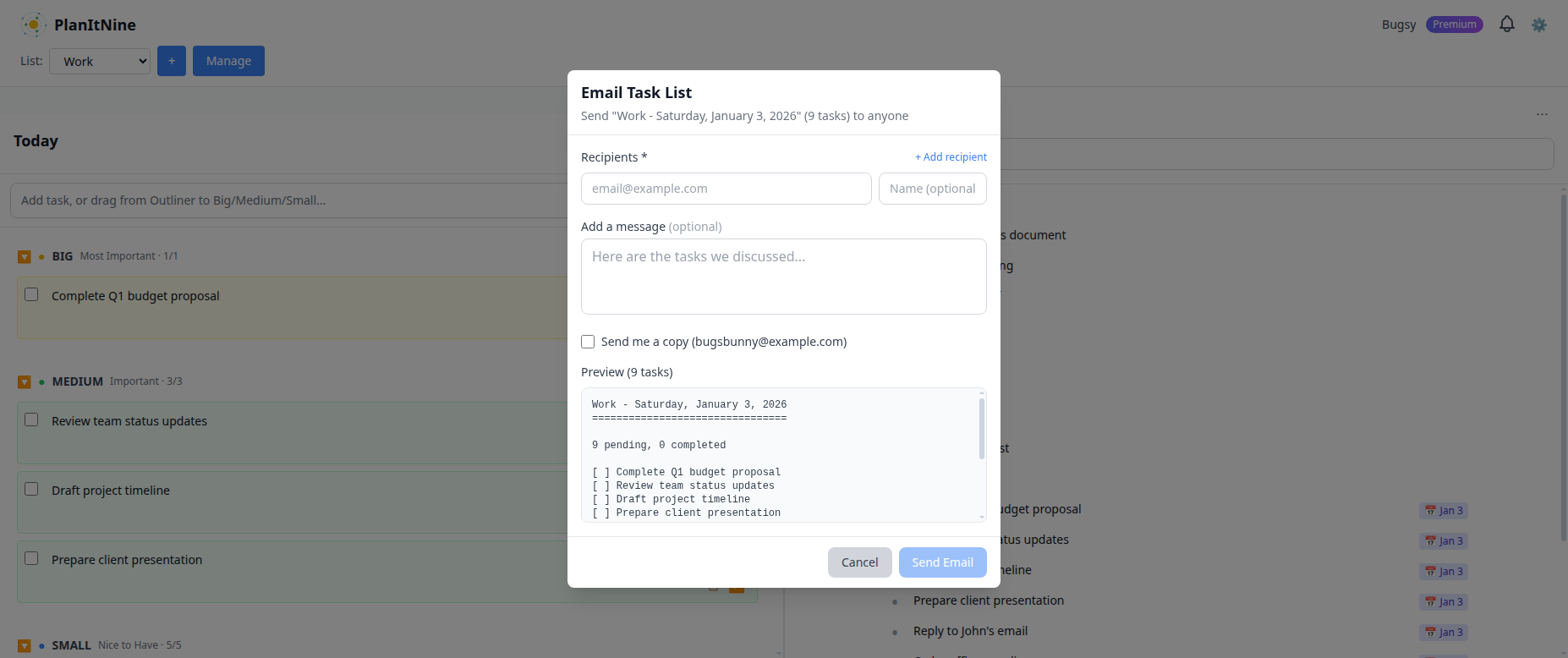
Share your daily plan via email - recipients don't need an account.
Best Practices
Mobile View
On mobile devices, the Daily Board and Outliner are shown on separate screens. Use the navigation buttons to switch between them:
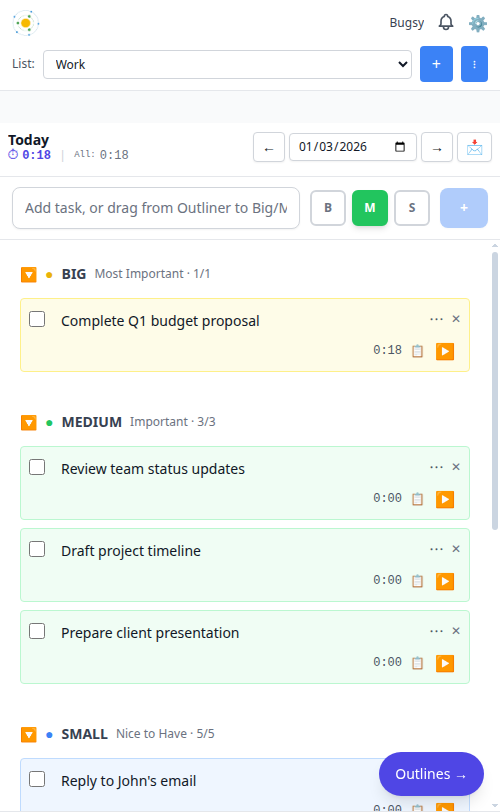
The mobile view keeps the 1-3-5 structure in a compact layout.