Time Tracking
PlanItNine includes built-in time tracking to help you understand where your hours go. Whether you need to bill clients, report to managers, or just improve your planning, time tracking gives you the data you need.
Why Track Time?
- Better estimates: Learn how long tasks actually take, not how long you think they take
- Client billing: Generate accurate time reports for billable work
- Accountability: Share time reports with managers or team leads
- Self-awareness: See where your day actually goes
Starting a Timer
Each task on the Daily Board has a play button (▶). Click it to start tracking time:
- Find the task you're about to work on
- Click the play button (▶)
- Work on the task
- Click the stop button (⏹) when done or switching tasks
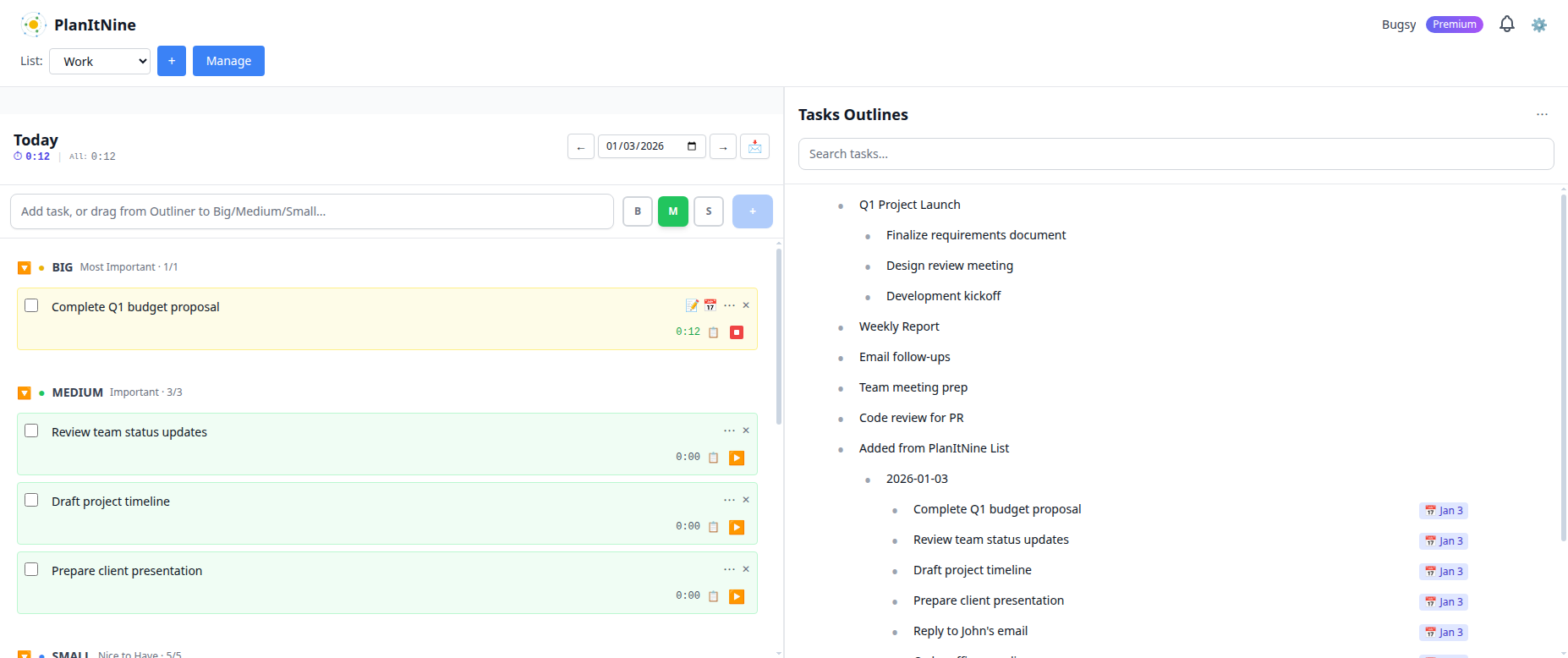
The timer shows elapsed time on the task and total time for the day in the header.
Viewing Time on Tasks
Each task displays its total tracked time next to the timer button. This includes all time entries, not just the current session.
The header also shows:
- ⏱ Current task time: How long you've been on the current task
- All: Total time tracked across all tasks today
Time Entries Panel
Click the clipboard icon (📋) on any task to view and manage time entries:
- See all time entries with start/end times
- Edit existing entries
- Add manual entries (for time you forgot to track)
- Delete incorrect entries
Adding Manual Time Entries
Forgot to start the timer? No problem. You can add time manually:
- Click the clipboard icon (📋) on the task
- Click "Add Entry"
- Enter the start time, end time, or duration
- Optionally add a note about what you did
- Save the entry
Time Reports Premium
Premium users can generate time reports:
- Click the Settings menu (⚙️)
- Select "Reports"
- Choose a date range
- Filter by list if needed
- Export as CSV or view on screen
Report Contents
Time reports include:
- Task name and list
- Date worked
- Duration
- Task size (Big/Medium/Small)
- Notes if any
Task History
To see all time entries for a specific task:
- Click the task's menu (⋯)
- Select "History"
- View all sessions with timestamps
This is useful for understanding how much total effort went into a project or task over time.
Best Practices
Time Tracking for Planning
Use your time data to improve future planning:
- If "quick" tasks consistently take 30+ minutes, they're actually Medium tasks
- If you never finish your Big task, it might be too big - break it down
- Notice which types of work take longer than expected
Related Guides
Start Tracking Your Time
Know exactly where your hours go and improve your planning.
Try PlanItNine Free