Getting Started with PlanItNine
Welcome to PlanItNine! This guide will walk you through setting up your account and planning your first productive day using the 1-3-5 method.
What is PlanItNine?
PlanItNine is a task management app built around the 1-3-5 method: each day, you focus on completing 1 Big task, 3 Medium tasks, and 5 Small tasks. That's 9 tasks total - hence the name.
This constraint is the key. Instead of an overwhelming to-do list, you have a focused, achievable daily plan.
Step 1: Create Your Account
Sign Up
- Go to app.planitnine.com/register
- Enter your name and email address
- Create a password
- Click "Create Account"
You'll be taken directly to your new dashboard - no email verification required.
Step 2: Understand the Interface
PlanItNine has two main areas:
The Daily Board (Left Side)
This is where you see today's tasks organized by size:
- BIG (1 slot) - Your most important task for the day
- MEDIUM (3 slots) - Important supporting tasks
- SMALL (5 slots) - Quick wins and small items
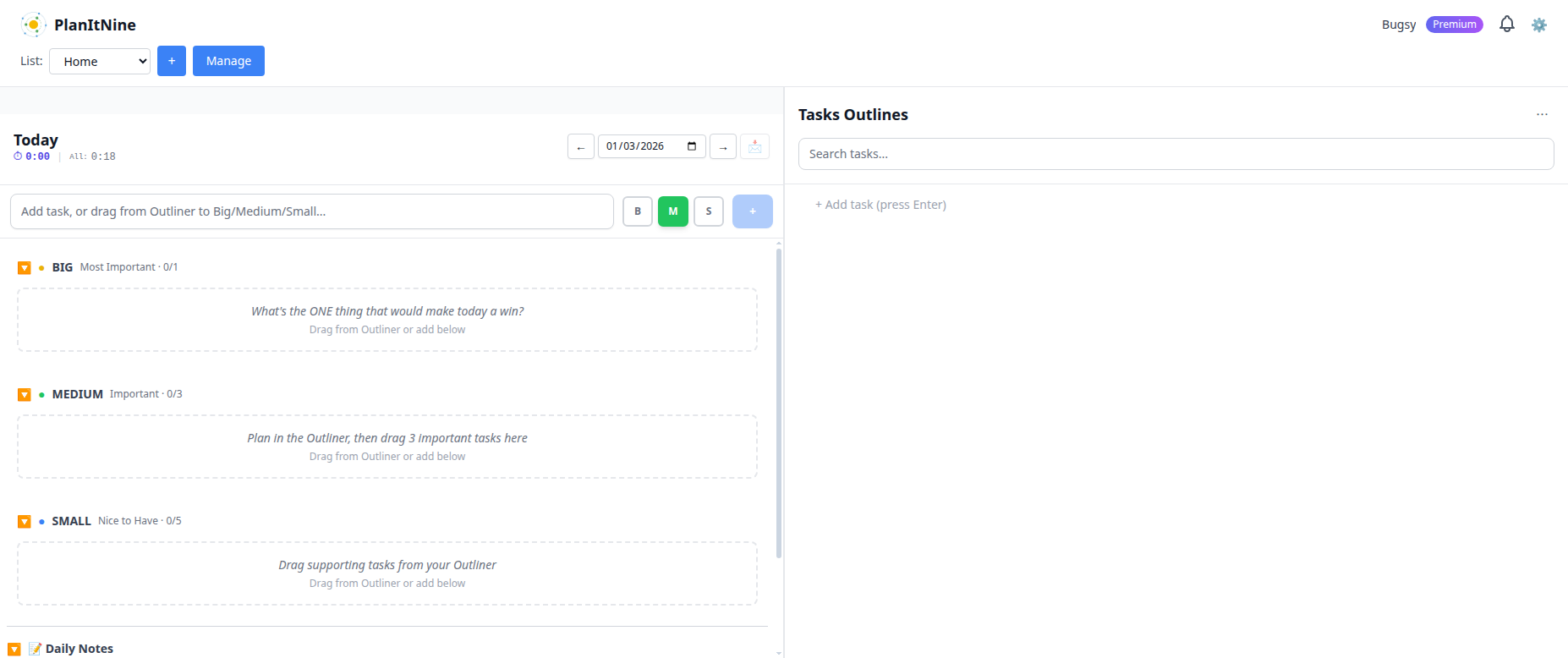
The daily board shows your 1-3-5 structure with helpful prompts.
The Task Outliner (Right Side)
This is your brain dump area. Use it to:
- Capture all your tasks and ideas
- Organize projects with nested subtasks
- Plan before committing tasks to a specific day
Think of the Outliner as your backlog. When you're ready to work on something, drag it to the daily board.
Step 3: Plan Your First Day
Quick Start Method
- Brain dump: Add all your tasks to the Outliner using the "+ Add task" field
- Pick your Big task: What's the ONE thing that would make today successful? Drag it to BIG.
- Choose 3 Medium tasks: What else is important? Drag them to MEDIUM.
- Add 5 Small tasks: Quick emails, calls, small items. Drag to SMALL.
- Start working: Begin with your Big task when your energy is highest.
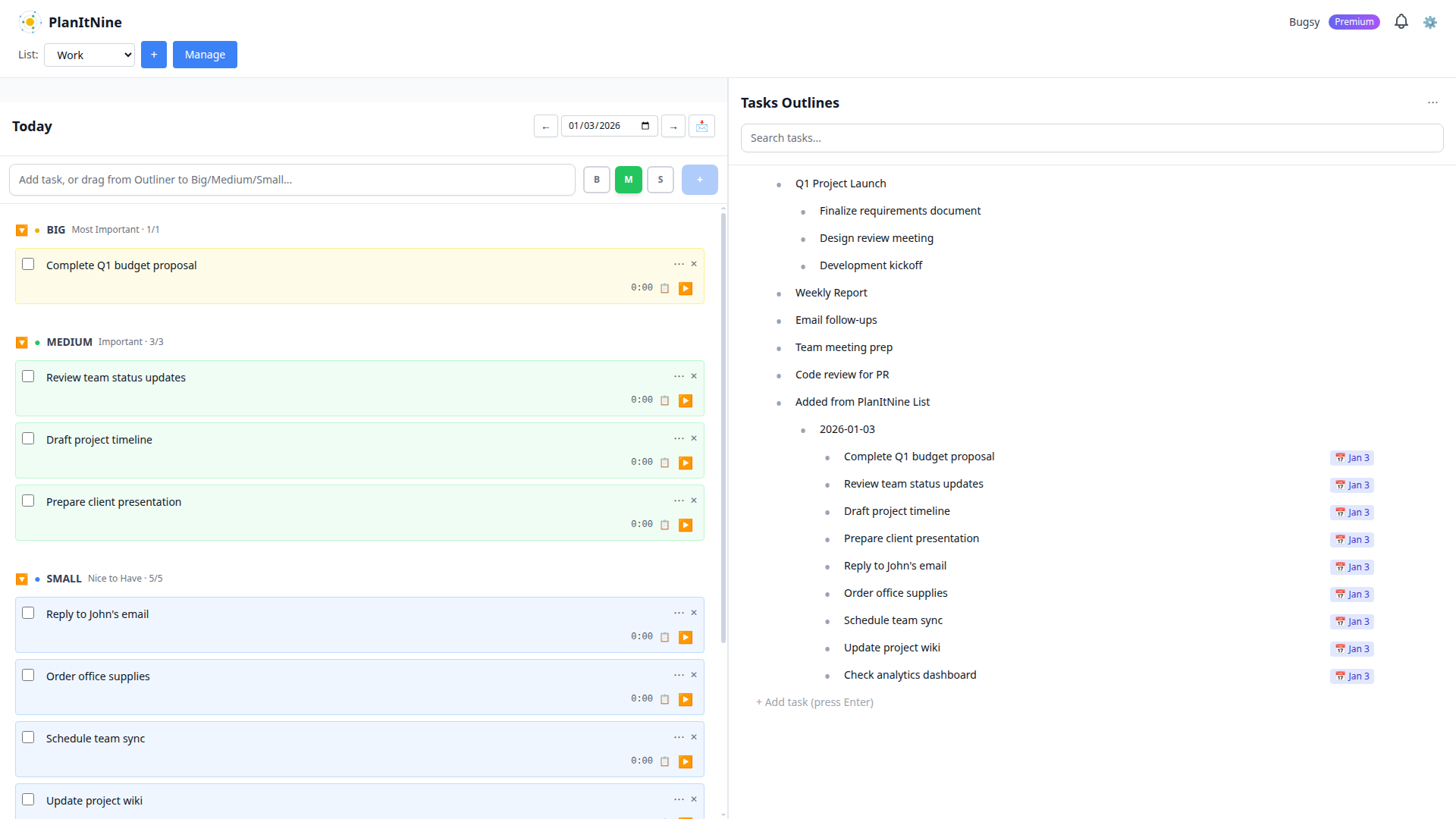
A complete daily plan: 1 Big task, 3 Medium tasks, 5 Small tasks.
Step 4: Work Through Your Day
Completing Tasks
Click the checkbox next to any task to mark it complete. The task will show a strikethrough, and you'll see your progress in the section headers (e.g., "BIG 1/1" means you completed your Big task).
Using the Timer
Track time on any task by clicking the play button. This helps you understand how long tasks actually take - useful for better planning in the future.
Moving Tasks
If you don't finish something today, click the task's menu (three dots) and select "Move to Tomorrow" or "Move to Next Week."
Step 5: Create Multiple Lists
Keep work and personal tasks separate by creating multiple lists:
- Click the "+" button next to the list dropdown
- Enter a name (e.g., "Work" or "Home")
- Switch between lists using the dropdown
Each list has its own 1-3-5 capacity. Your Work list can have 9 tasks AND your Home list can have 9 tasks.
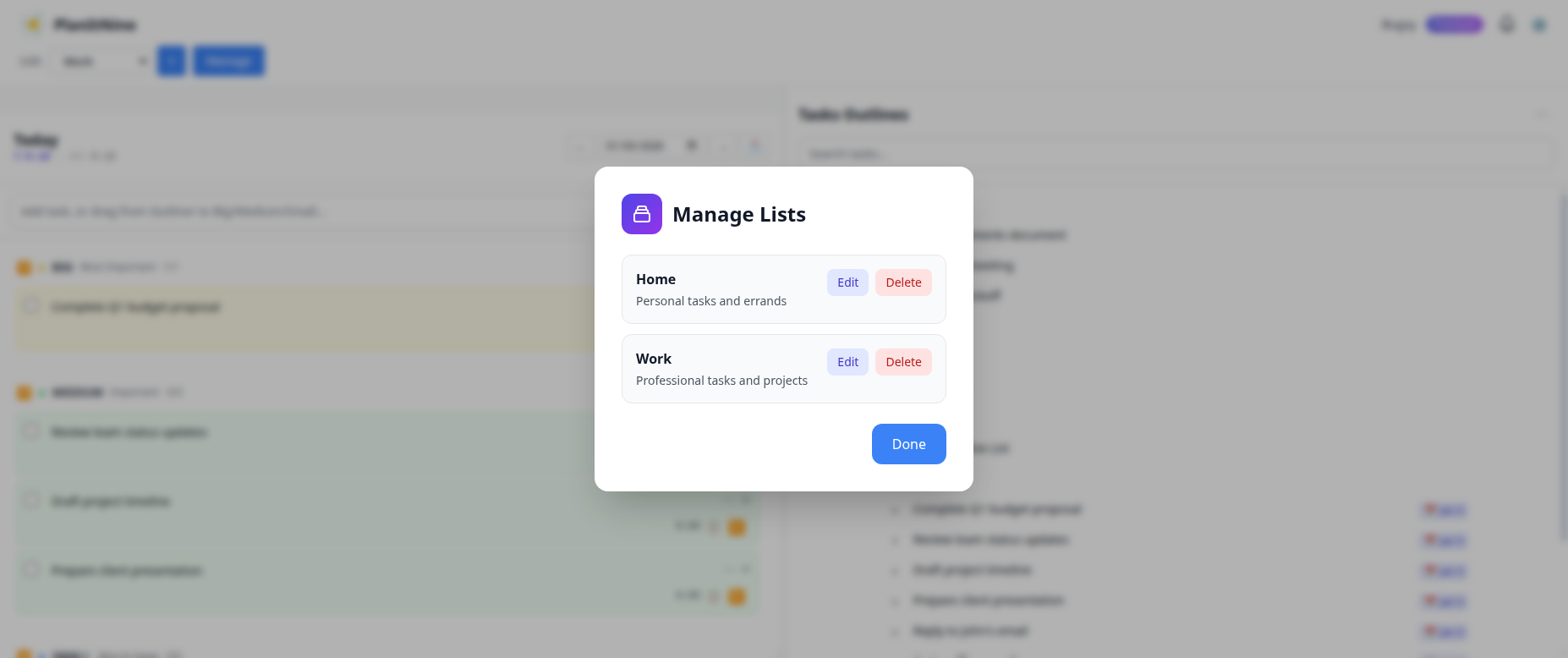
Create separate lists for different areas of your life.
Next Steps
Now that you're set up, explore these guides to get the most out of PlanItNine:
- The 1-3-5 Method Explained - Deep dive into why this works
- Using the Task Outliner - Master project planning
- Time Tracking - Track where your hours go
- Sharing Tasks via Email - Keep stakeholders in the loop
Ready to Get Started?
Create your free account and plan your first productive day.
Create Free Account